Notion Templates for Beginners: How to Choose Your First Setup
Your first Notion template should make life simpler within a few minutes. Beginners often install a huge workspace because it looks impressive, then stop using it because every task requires too many decisions. A focused template with a clear daily or weekly action is a better starting point.
What makes a template beginner-friendly?
- One obvious purpose.
- A small number of databases and properties.
- Clear instructions and sample data.
- Useful default views.
- No dependence on complicated formulas.
- A workflow that can be understood by testing a few records.
Choose your first use case
Start with the area causing the most friction now. Do not try to organize your entire life on the first day.
Tasks and daily priorities
Choose the Notion to-do list template if you need one place to capture tasks and decide what to do next.
School and university
Use the student dashboard template to keep courses, assignments, notes, and deadlines together.
Habits and routines
The habit tracker template works well when you want a simple daily check-in and weekly review.
Money
The budget template helps organize income, expenses, and savings without requiring a complete finance operating system.
Reading and reflection
Try the book tracker or journal template for a low-pressure introduction to databases and reusable pages.
A simple setup process
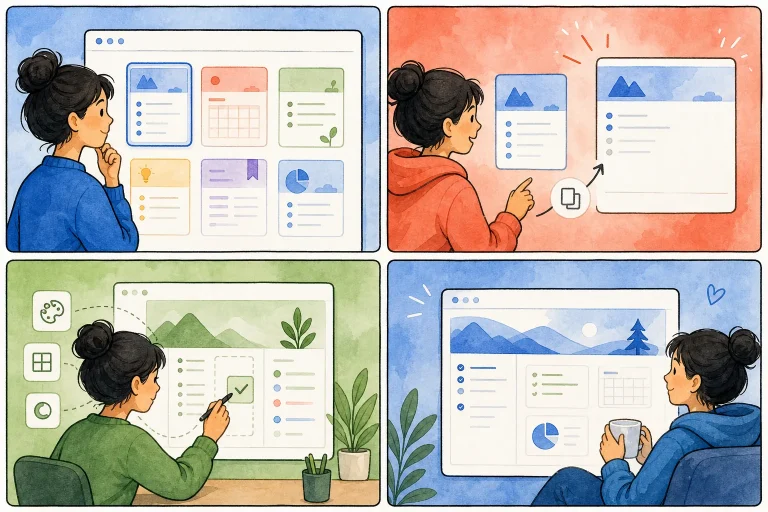
- Preview: look at the main page, databases, and available views.
- Duplicate: copy the template into your personal workspace.
- Test: add three realistic records before changing the design.
- Clean: remove demonstration records you no longer need.
- Customize: rename categories and hide irrelevant properties.
- Review: use the template for seven days before adding features.
Basic Notion concepts worth learning
Pages
A page can contain content or act as a dashboard linking to other pages and databases.
Databases
A database stores repeating items such as tasks, books, projects, or transactions. Every item is also its own page.
Properties
Properties describe database items. Common examples include status, date, category, checkbox, number, and relation.
Views
Views display the same database in different ways. Switching from a table to a calendar does not create another copy of the information.
Filters and sorting
Filters decide which items a view shows. Sorting controls their order. These two features create focused dashboards without duplicating data.
What beginners should avoid
- Installing several templates that manage the same information.
- Creating relations between every database.
- Adding formulas without understanding their inputs.
- Spending hours on icons and colors before testing the workflow.
- Moving all personal data before confirming the template fits.
- Using dozens of status options.
When to move to a more advanced system
Expand only when you can name a limitation in your current setup. You might connect projects to tasks when you are managing several active projects, add a content pipeline when publishing becomes consistent, or move to a complete business system when client work requires shared operations.
Frequently asked questions
Is Notion difficult to learn?
Basic pages, checklists, and simple databases are approachable. Relations, formulas, and automation take more practice, but beginners do not need them immediately.
How many templates should I use?
Start with one. Add another only when it manages a different kind of information and has a clear role.
Can I undo changes?
Notion provides page history depending on your plan, but duplicating a clean backup before major changes is the safest approach.
Find a manageable first setup
Use the template finder or explore the curated template shortlist.