How to Use Notion Templates: A Practical Beginner Guide
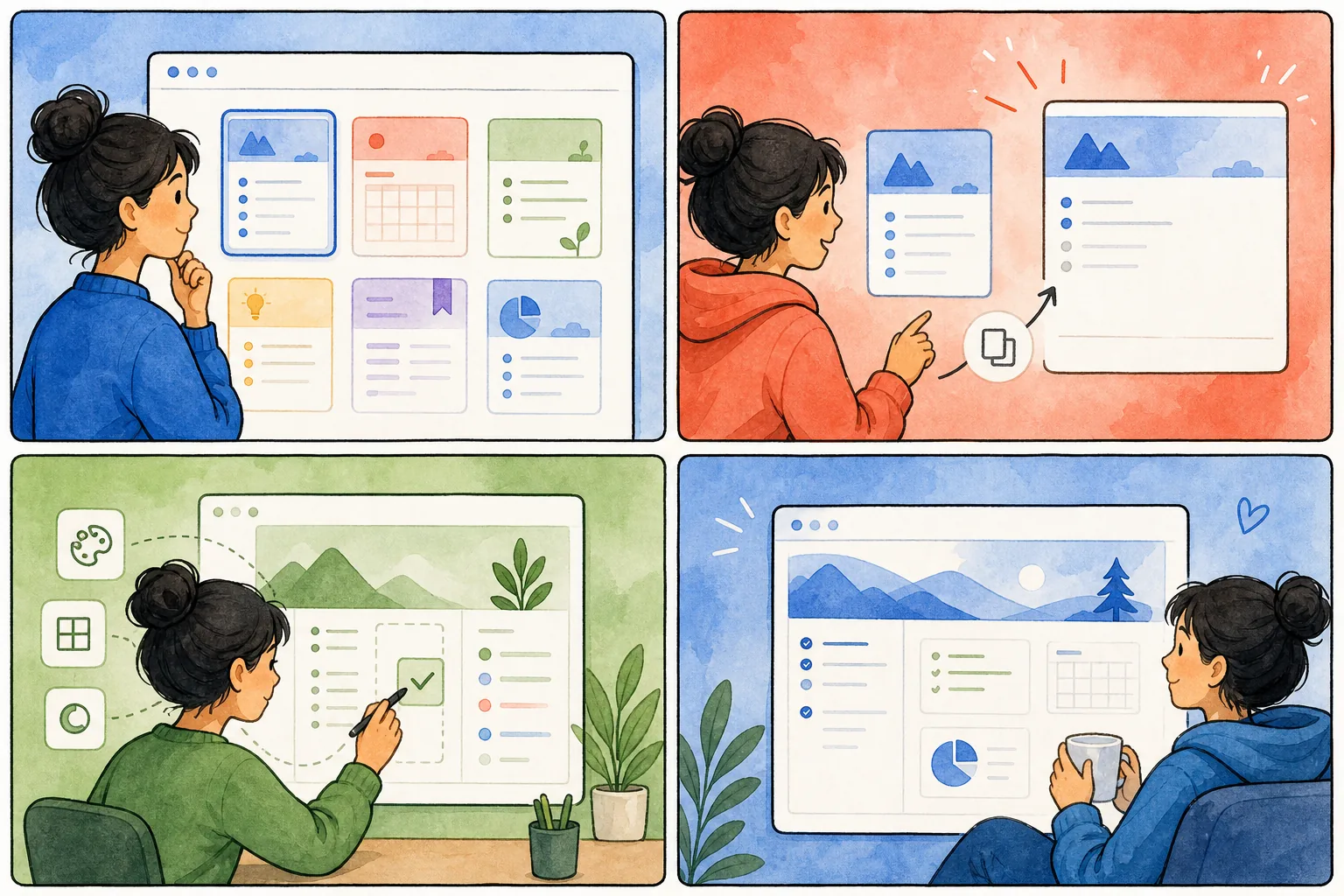
Notion templates give you a ready-made structure for organizing work, study, or personal projects. Instead of building every database and page from scratch, you can duplicate a template, adapt it to your routine, and start using it immediately. The key is to customize only what you understand and keep the system simple enough to maintain.
What happens when you duplicate a Notion template?
Duplicating creates an editable copy inside your own Notion workspace. The original creator cannot see the information you add to your copy. Databases, views, properties, relations, and page layouts are copied together, although external integrations or restricted content may need separate setup.
Before duplicating, open the public template and look for a Duplicate button in the upper-right corner. Choose the correct workspace and allow the copy to finish loading before making changes.
1. Choose a template for one real problem
Start with a specific outcome: tracking assignments, managing client follow-ups, planning content, or controlling a monthly budget. A focused template is easier to adopt than an enormous workspace containing features you may never use.
- Students can begin with the Notion Student Dashboard.
- Freelancers can use the free Notion CRM template.
- Creators can start with the content calendar template.
- For everyday planning, try the Notion to-do list template.
2. Duplicate it into the correct workspace
If you belong to several workspaces, check the destination carefully. Personal templates usually belong in a private workspace; team operating systems should go into the workspace where collaborators already work. After duplication, rename the top-level page so it is easy to find.
3. Understand the main database before editing it
Open the primary database and identify its properties. Common properties include status, due date, category, owner, priority, and relation. Then inspect each view. A table, calendar, board, and gallery can all display the same records differently, so deleting a view does not necessarily delete the underlying data.
Create two or three test records and move them through the workflow. This is the fastest way to understand how the template behaves without risking important information.
4. Remove sample data safely
Templates often include demonstration records. Delete sample entries only after you understand what they illustrate. Keep useful select options, formulas, and database properties. If you are unsure, duplicate the database or page again before making major structural changes.
5. Customize names, categories, and views
Rename properties using words you naturally use. Replace irrelevant categories, hide properties that do not help decisions, and reorder views so your most-used view appears first. Avoid changing formulas or relations until you understand their dependencies.
6. Add your real information gradually
Do not migrate everything at once. Add current projects, active courses, this month’s expenses, or the next few content ideas. Use the template for a week, then adjust it based on real friction. A small system used consistently is more valuable than a sophisticated system that becomes a maintenance burden.
7. Create a simple review habit
Most templates work best with a recurring review. Choose a realistic interval:
- Daily: clear the inbox and select priorities.
- Weekly: update statuses, deadlines, and next actions.
- Monthly: archive completed work and simplify unused views.
Common mistakes to avoid
- Installing too many templates: overlapping systems create duplicate information.
- Deleting database properties immediately: they may power filters, formulas, or relations.
- Over-customizing before using it: test the default workflow first.
- Ignoring mobile: check important views on your phone if you work on the go.
- Keeping everything forever: archive old projects so active views remain useful.
Frequently asked questions
Can I use templates on Notion’s free plan?
Most personal templates work on the free plan. Features involving large teams, advanced permissions, or paid integrations may require a different plan.
Can the template creator access my data?
No. Once duplicated, your copy belongs to your workspace. Only people you explicitly invite can access it.
What if the Duplicate button is missing?
Confirm that you are signed into Notion and that the creator enabled duplication. Try opening the page in a normal browser tab rather than an embedded preview.
Choose your next template
Browse the free template library or use the template finder to match a workspace to your needs.